Google Translate API for business

Back in May, Google announced the deprecation of the free Translate API v1. They’re introducing a paid version of the Google Translate API for businesses and commercial software developers. The Google Translate API provides a programmatic interface to access Google’s latest machine translation technology. This API supports translations between 50+ languages (more than 2500 language pairs) and is made possible by Google’s cloud infrastructure and large scale machine learning algorithms.

The paid version of Translate API removes many of the usage restrictions of previous versions and can now be used in commercial products. Translation costs $20 per million (M) characters of text translated (or approximately $0.05/page, assuming 500 words/page). You can sign up online via the APIs console for usage up to 50 M chars/month.

Developers who created projects in the API Console and started using the Translate API V2 prior to today will continue to receive a courtesy limit of 100K chars/day until December 1, 2011 or until they enable billing for their projects.

For academic users, they will continue to offer free access to the Google Translate Research API through their University Research Program for Google Translate. For website translations, they encourage you to use the Google Website Translator gadget which will continue to be free for use on all web sites. In addition, Google Translate, Translator Toolkit, the mobile translate apps for iPhone and Android, and translation features within Chrome, Gmail, etc. will continue to be available to all users at no charge.

The evolution of sitelinks

When you’re searching, you often have a specific task in mind, like figuring out which exhibits are showing at a nearby museum. Despite this narrow goal, people often start with a broad query, like [metropolitan museum of art], with no mention of exhibits. For these searches, the first result may include a list of links to specific sections of the site, which are called “sitelinks.” Today, we’re launching several improvements to sitelinks, including the way they look and are organized in search results.


Sitelinks before today’s changes


Sitelinks have been around for a while, but when we first launched them years ago, they were much more limited—a single row of just four links:


It turns out that sitelinks are quite useful because they can help predict which sections of the site you want to visit. Even if you didn’t specify your task in the query, sitelinks help you quickly navigate to the most relevant part of the site, which is particularly handy for large and complex websites. Sitelinks can also give you a good overview of a website’s content, and let webmasters expose areas of the site that visitors may not know about.

As it became clear how valuable sitelinks were, we continued to improve their appearance and quality. We rearranged them into a column of links to make them easier to read. We doubled the number of links, creating direct access to more of the site. We started showing sitelinks for more results and we continuously made improvements to the algorithms that generate and rank the links. With each of these changes, people used sitelinks more and more.

That brings us to today’s launch. Sitelinks will now be full-size links with a URL and one line of snippet text—similar to regular results—making it even easier to find the section of the site you want. We’re also increasing the maximum number of sitelinks per query from eight to 12.

Improved sitelinks with URLs and snippet text

In addition, we’re making a significant improvement to our algorithms by combining sitelink ranking with regular result ranking to yield a higher-quality list of links. This reduces link duplication and creates a better organized search results page. Now, all results from the top-ranked site will be nested within the first result as sitelinks, and all results from other sites will appear below them. The number of sitelinks will also vary based on your query—for example, [museum of art nyc] shows more sitelinks than [the met] because we’re more certain you want results from www.metmuseum.org.

(Via the Inside Search blog)

Google Related- Find More

Almost every time I go online, I come across some new topic or item that I’d like to learn more about. Sometimes it’s as simple as the latest buzz on the new shop down the street. Other times it’s something more significant, like a counterpoint to an opinion piece I’m reading. While the answer can be just a simple search away, we wanted to find a way to get some of those answers to you even faster. Now with Google Related, a new Chrome Extension and Google Toolbar feature, you’ll automatically see interesting content relevant to what’s on the page you’re viewing, right where you’re viewing it.

Whether you’re reading a news article, shopping for a new pair of shoes or visiting your favorite musician’s website, Google Related works in the background to find you the most interesting and relevant content on the topics you’re currently viewing. For example, if you visit a restaurant’s website, Related can show you a map, reviews from Google Places, mentions from across the web and other similar eateries that you might want to try.

Results will display in a thin bar at the bottom of your screen, and will remain minimized until you hover over them with your mouse. Once selected, they’ll open up immediately in your browser window, saving you the trouble of having to open multiple new windows or tabs. If Google Related shows you something you’re interested in, you can let others know using the built-in +1 button.

In order to offer you relevant suggestions, Related sends the URL and other available information about the pages you visit back to Google. If you’re interested in how that data is used and stored, you can learn more here and here.

If you decide you’d rather not see the Related bar, you can easily hide it for specific pages and sites through the Options menu. If you use Related as part of Google Toolbar, you can disable Related entirely through the Options menu as well.

Google Related is available both as a Chrome Extension in the Chrome Web Store and as a new feature in Google Toolbar for Internet Explorer. Visit www.google.com/related to learn more and to get Google Related today.


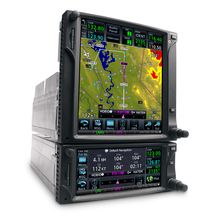
Garmin: Instructions for graphical flight plan editing on the GTN


Instructions for graphical flight plan editing on the GTN:

1. On the Map, touch the Map to activate the Map Pointer and enter the Graphically Edit Flight Plan Mode.
2. Touch the Graphically Edit FPL key.
3. Touch and hold the leg of the flight plan you wish to edit.
4. Drag it to a new waypoint and release your finger.
5. Touch the Done key.
Detailed instructions can also be found in the Pilots’ Guide on page 9-29.