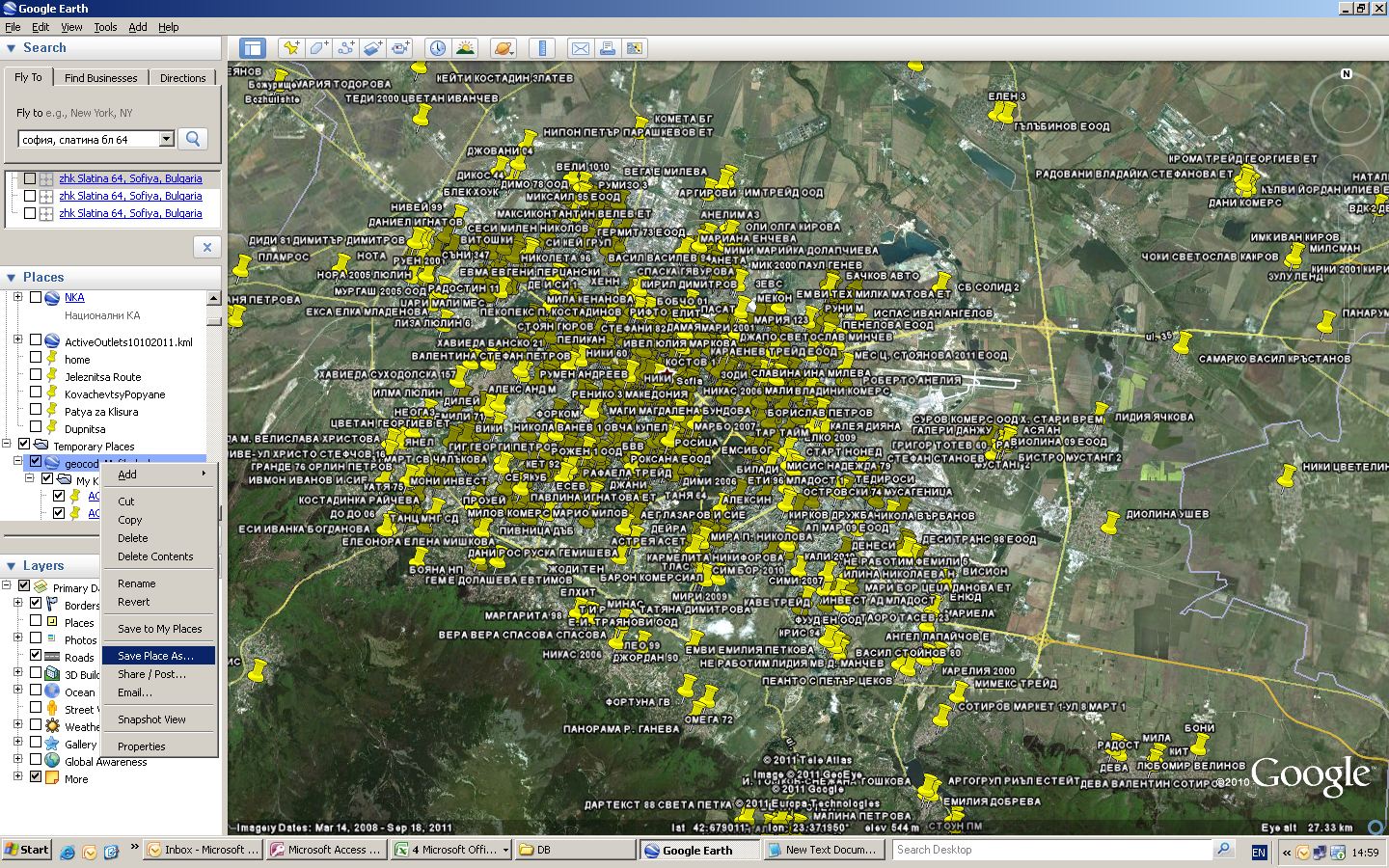
How to use Google Earth as a source of geocoding!

I would like to share with you simple hint – How to use Google Earth as a geocoding tool.
You should have list with addresses and names of the points in Microsoft Exel file.


.KML format have couple of structures and one of them is:

<?xml version="1.0" encoding="UTF-8"?>
<kml xmlns="http://earth.google.com/kml/2.1">
<Document>
<Folder>
<name>
</name>
<Placemark>
<name>
</name>
<visibility>0</visibility>
<address><![CDATA[    ]]></address>
</Placemark>
</Folder>
</Document>
</kml>

So we should take the name of the point and the address and we are putting it in this frame structure.
To do this we have to create simple macro which will create .KML file with the names and the addresses from our Microsoft Excel file.

Sub generateKML()
'
' GenerateKML Macro
' Macro recorded 27/02/2010 by ipt
'

    ' Set file details
    Set filePath = [File_details!C2]

    ' Set document name
    Set docName = [File_details!C3]

    Open filePath For Output As #1

    'Write header to file
    outputText = [File_details!C5] & docName & [File_details!C6]
    Print #1, outputText

    'Start to loop through stations
    For Each cell In [Data!A2.A50001]

        pmName = cell.Offset(0, 0)
        pmAddress = cell.Offset(0, 1)

        If pmName = "" Then
           Exit For
        End If

        'Create a placemark
        outputText = [File_details!C8] & pmName & [File_details!C9] & pmAddress & [File_details!C10]
        Print #1, outputText

    Next

   'Write footer to file
    outputText = [File_details!C12]
    Print #1, outputText

    Close #1

'
End Sub

We are creating two sheets – Sheet “data” – is where we have to paste the names and the addresses
The second Sheet is called “File_Details” and in this sheet we should describe the structure of the .KML file.
We are describing output file name and directory also.
The macro will Loop thru the record set from “Data” Sheet and it should Save data as .KML file.
When you open the file with Google Earth it will start geocoding. For approximately 2500 POI – raw addresses with removed fullstops it took 30 minutes to geocode
1875 POI’s

To get the geocoded data you have save your file as .KML from Google Earth in specific directory.
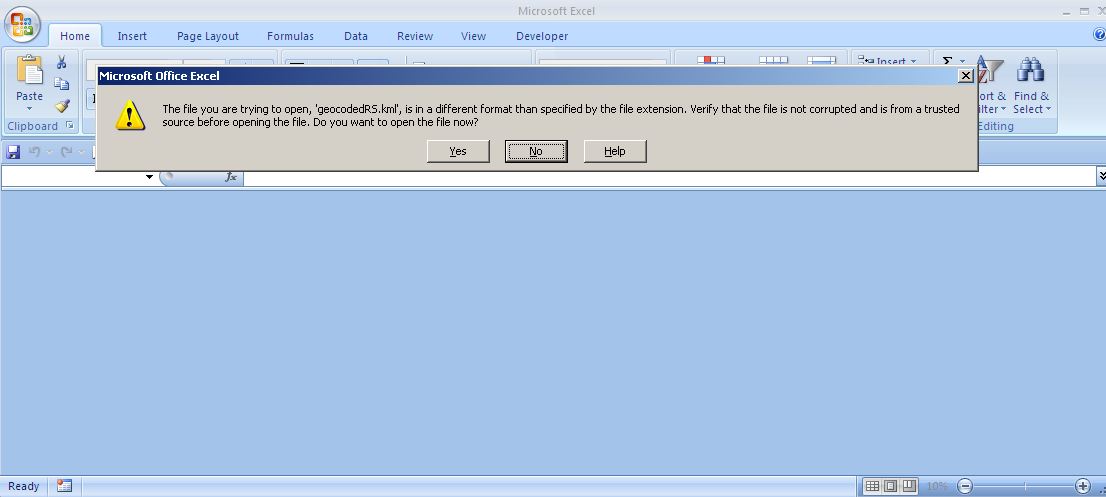
After that you opening saved file with Microsoft Excel.
Microsoft Excel will ask you to open this file as an .xml table(picture)

And opening the file you should see something like:


Copy POI and coordinates and bring them back in Microsoft Excel by “Paste special as value”.

The Bing Maps WPF Control

Since rejoining the Bing Maps team, I’ve been heads down focusing on the developer experience for Bing Maps. As a result, we’re releasing the Bing Maps WPF Control Beta on the Microsoft Download Center. What is WPF? The Windows Presentation Foundation (WPF) provides developers with a unified programming model for building rich Windows smart client user experiences that incorporate UI, media, and documents.

The WPF Control has everything you’d expect from a Bing Maps control including the ability to present information via a WPF native control such as:

· Map Styles: Road, Aerial and Hybrid

· The ability to place shapes on the map via lat/lon – pins, polylines and polygons

· Navigating the map with pan and zoom keyboard controls


We’ve also opened up a lot of the abilities within the control to empower the developer to take control of the user experience. So, you’ll notice there is no default navigation, no default pushpins and none roll overs – this is truly a blank (er, map-based) canvas – we want to see you do some killer things with.

Perhaps the most notable facet to this WPF control is support for Microsoft Surface. That’s right. The Bing Maps WPF Control Beta is touch-enabled with support for Surface v 2’s Pixel Sense technology. So, for those of you using WPF in your Surface applications you’ll have native support for touch features.

We worked closely with the Surface team and have had a constant need to support our WPF developer community with mapping. In the past, we’ve pushed to have WPF developers use the Bing Maps Silverlight Control (or our Bing Maps AJAX Control v7) in a web control, but it’s just not the same as having managed code libraries to work with.

The WPF control supports full rotation and inertia with options to turn both off. Plus, infinite scroll maps, touch to lat/lon to pixel conversions (think touch to add a pushpin) and the ability to plug into the Bing Maps REST API for geocoding and routing or the Bing API for search.

We hope you enjoy the control. It’s a beta, so we’re looking for some feedback on what you think, what works and what doesn’t. All questions/comments/feedback can be directed to the MSDN Forums. We hope to see some awesome applications built in WPF and Surface applications with our Bing Maps control.

Google Maps Mashups 1

Climate Hot Map


The Union of Concerned Scientists has created this Google Map to show the probable effects of global warming around the world. The map is accompanied by a Climate Hot Map Scavenger Hunt, which if you complete successfully gives you a chance to win a trip for two to the Rio Cachoeira Natural Reserve in Brazil.

The map explores the effect of climate change on people, the environment, the oceans, ecosystems and the temperature. You can select to explore any of these categories on the map using the menu at the bottom of the map.

Planefinder.net
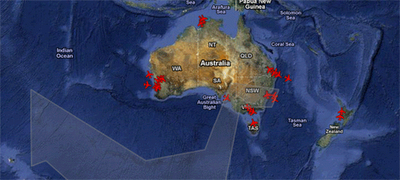


The ash cloud created by the eruption of the Puyehue volcano in Chile continues to cause huge disruption to plane flights in Australia. Real-time flight tracking website planefinder.net is using Google Maps to show the location of the ash cloud as it drifts around the southern hemisphere.

The ash cloud is predicted to linger over south-east Australia for some time, causing widespread disruption to flights in and out of Sydney and Melbourne. At the time of writing the planefinder.net map shows a few flights in and out of south-east Australian airports but nowhere near the flight activity that can be seen in and around Perth.
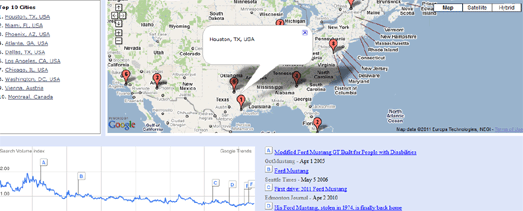
Mibazaar has created a Google Maps based application to explore where people are searching for a given keyword in Google Search.

In this demo of the application you can view where people are searching for different makes of Ford car around the world. For each make of car you can view the ten locations where the most people are searching for that Ford.

The map includes historical data so you can view how searches have changed over the years for each make of car.

Mibazaar – Google Trends – Ford

sailorsmap.com
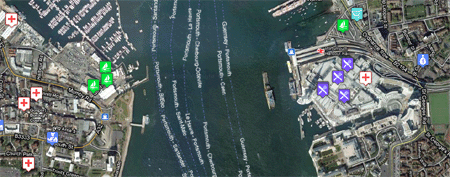

SailorsMap is a Google Map designed to help boat owners find useful places nearby.

Marinas and local stores that may be useful are added to the map on the fly. If your browsing device supports GPS then SailorsMap is automatically positioned at your current location.

As well as displaying nearby points of information, found via Google Maps Search the map, displays the nautical anchorages of Croatia.

Censo2010
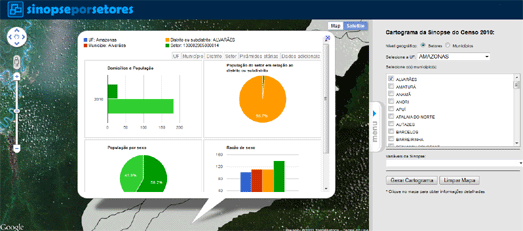

The Instituto Brasileiro de Geografia e Estatística has created an application that allows you to browse the results of the 2010 Brazilian census on a Google Map.

Using the application you can click on a census tract on the map and view demographic information collected in the census. The information includes the population, the percentage of men and women and the percentage of different age groups in the population.

Dotter Example – San Francisco Crime Map
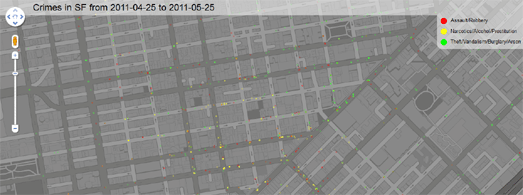

This Google Map displays 5000 crimes in San Francisco almost instantly on a Google Map. The map was created with the Google Maps API and the Dotter.js, a javascript class that generates data URIs.

The crimes displayed were committed in San Francisco between the 25th April and 25th May 2011. What is really impressive about the map is how quickly the 5000 data points load on the map.

If you want to create your own super-fast map with thousands of data points then the Dotter.js class is available on Github

Quake-Catcher Network
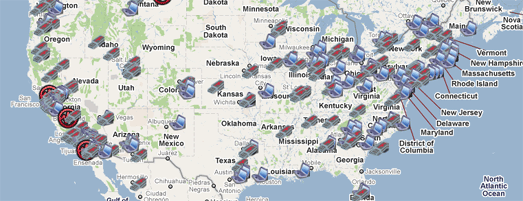

Many laptops these days are built with accelerometers that are designed to protect your hard drive from damage. The accelerometer detects sudden movement and can switch the hard drive off so that the heads don’t crash on the platters.

The Quake-Catcher Network realised that they could create the world’s largest and densest earthquake monitoring system simply by using the data from accelerometers in the world’s laptop computers. The Quake-Catcher Network links participating laptops into a single coordinated network that can detect and analyze earthquakes faster and better than ever before.

QCN uses Google Maps to show the data collected from participating laptops and from participating desktop computers with USB sensors. The map also shows the latest USGS reported earthquakes.

Live Call Map – OnSIP
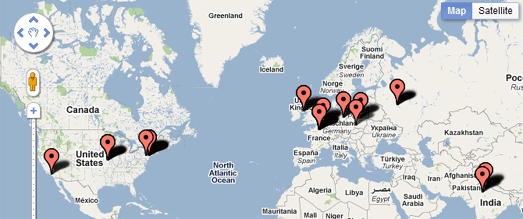

OnSIP, a provider of Voice over IP calls has released a real-time Google Map of calls made using its service.

The map makes nice use of the drop marker animation in the Google Maps v3 API. Each time an OnSIP customer makes or receives a call, a map marker is dropped on the live map, openly displaying call volume peak and trend information. A marker is dropped on the map every time an OnSIP customer makes or receives a call.

Map Channels
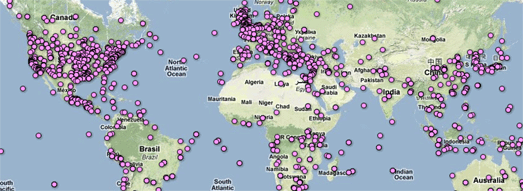

Map Channels, the popular Google Maps creation tool, now lets you add data to a map from Google Fusion Tables.

In the four years that Map Channels has been running over 20,000 maps have been created by its users. It has proved popular with casual map makers and with major news organisations., including Fox News and CBC.

You can create a Google Map with Map Channels using data from a KML, a Google Spreadsheet, a GeoRSS feed, tab delimited text and now with a Google Fusion Table. You can see an example of a Map Channels created map with data provided by a Fusion Table in this Wikipedia Events Map.

Postholer.com
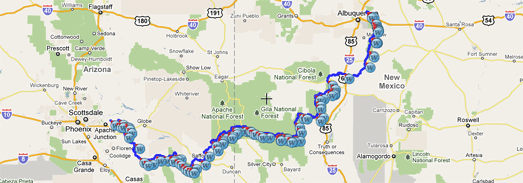

Postholer.com has created a Google Map of some of America’s most interesting trails. The map includes the route of the Appalachian Trail, the Pacific Crest Rail, the Continental Divide Trail and many more.

When you select a trail its route is displayed on the map. You can then select to view waypoints, points of interest, parking, camping spots and photos along the trail from a drop-down menu.

As well as providing a Google Map of the trails Postholer.com also provides a full set of printable maps for each trail.

Ofcom – Broadband Speeds Map
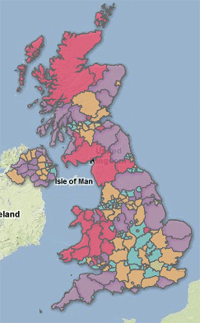
Ofcom, the regulator of the UK communications industries, has created a Google Map to show the speed of broadband throughout the UK.

Each county in the UK has been ranked on how they score on four broadband metrics; average sync speed, percentage getting less than 2Mbit/s, superfast broadband availability and broadband take up. The map displays as a basic heat map with each county coloured to show how they perform overall on each metric.

The map confirms what you already probably suspected. If you want superfast broadband then you are more likely to be lucky if you live in a big city. If you live in the Outer Hebrides then you are probably going to have make do with superslow broadband.


Cross from Google Maps Mania

Dev Tip of the Week: How to search by driving time with AJAX v7, REST, and Spatial Data Services

The recently released Query API within the Bing Spatial Data Services makes it easy to build applications that enable searching for locations by area, by property, and by ID. A common scenario is the ‘Locator’ application, in which end-users enter an address, and find the locations that are nearest to them. We can easily cater for this in Bing Maps by geocoding the end-user’s address with the Locations API, and then finding nearby locations with the Query API to Query by Area.  Using a spatial filter, we can find the locations that sit within a specified radius of the given location, and present the results ordered by distance ‘as the crow flies’.

But what about those cases in which geography or other considerations mean that the closest location by straight line measurement will actually take much longer to drive to than one of the other locations? For example, if you are in the Upper West Side of Manhattan, NY, the nearest location by straight line distance might be across the Hudson River in New Jersey. But actually getting there will require you to drive or walk quite some distance in order to cross a bridge over the river.

It would be much quicker to make your way to a location in Manhattan that might be a bit further by straight-line distance, but doesn’t require you to cross any rivers.

So how can we help our users identify the locations that will take the least amount of time to get to? We can reorder our results by driving time before we present them to our end user. By using the Query API to obtain a set of locations in the vicinity of our user, then using the Routes API to determine how long it will take to drive to each of our nearby locations, we can guide our user to our locations which will be quickest for them to get to.

Reordering Results by Driving Time

The key step here will be the reordering of our results so that they are presented in order of least driving time, and doing this without making separate Routes API requests for each location. We achieve this by constructing a multi-point route request, going from the search origin (our user’s location) to each of the locations in our Query API result set and back. The Routes API supports up to 25 waypoints per route request, so we could use this technique to determine the driving distances for up to 12 locations in a single request. We can use the resulting drive time (or drive distance) of each leg of our route to reorder our locations before presenting them.

Sample Application

Included below is code for a basic application that combines the Bing Maps AJAX Control v7, the Query API, and the REST Locations and Routes APIs, to enable a fully client-side locator scenario in which we present our results based on driving time.

At a high-level, the application will:

  • Capture a user address, and geocode it via the Locations API
  • Take the latitude and longitude from our geocoded location, and use the Query API with a spatial filter to find the nearest 5 Fourth Coffee Shops to the user address
  • Generate one multi-point route request that goes from our geocoded location to each Fourth Coffee Shop and back
  • Reorder our results based on the driving distance from the geocoded location to each Fourth Coffee Shop
  • Present the reordered results to the end user on a map using the Bing Maps AJAX Control v7

To optimize performance, we limit the result set to 5 locations, but to reduce the chances that there are other stores that might be closer by driving time than the 5 that are presented, we could also consider retrieving 10 results from the Query API, reordering them by drive time, then presenting only the top 5 from our reordered result set.

Here is the code. To view and use the code, developers will need to obtain a key and insert that key into the placeholder within the code sample.

Build your own Mapping, Geocoding, and Routing service with SQL Server

Back in 2010, I was lucky enough to present a session at the SQLBits V conference, on “Creating High Performance Spatial Databases“. I say “lucky” not because I enjoy presenting at conferences (because I don’t particularly), but because SQL Bits is a fantastic conference, organised by a highly-dedicated, bloody-hardworking, talented, and generally nice bunch of people, and it was an honour to be associated with them and to learn from them.

The next SQL Bits conference, SQL Bits 8, is happening in Brighton between 7th – 9th April 2011, and I’ve just submitted a new session for it, titled (as is this post) “Who needs Google Maps? Build your own Mapping, Geocoding, and Routing service”. If my session gets accepted, I’m planning demonstrating practical uses of the spatial datatypes in SQL Server to perform, well, mapping, geocoding, and routing.

Following feedback from Simon Sabin (a SQL Server MVP with much more presenting experience than me) I got after my last presentation , I’m going to be ditching the Powerpoint slides and the theory and, if my session is selected, I’ll be presenting a lot more eye-candy like this instead:

Routefinding

Mapping Features

Cheers!