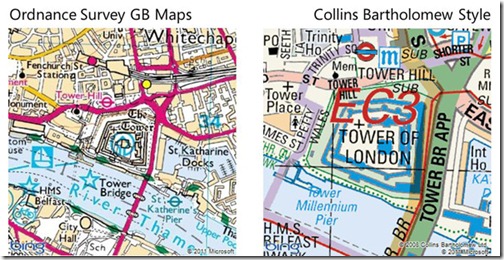
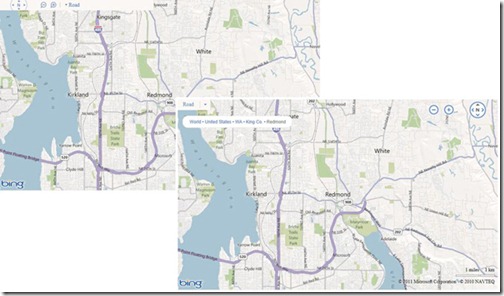
See More Mango Videos Here: bit.ly When we first did our Ultimate Windows Phone 7.5 Mango Preview, we weren’t able to find any indoor maps to show off. Even the Manhattan Mall that we had previously seen demoed wasn’t working.
SketchUp: How to assign materials to groups and components
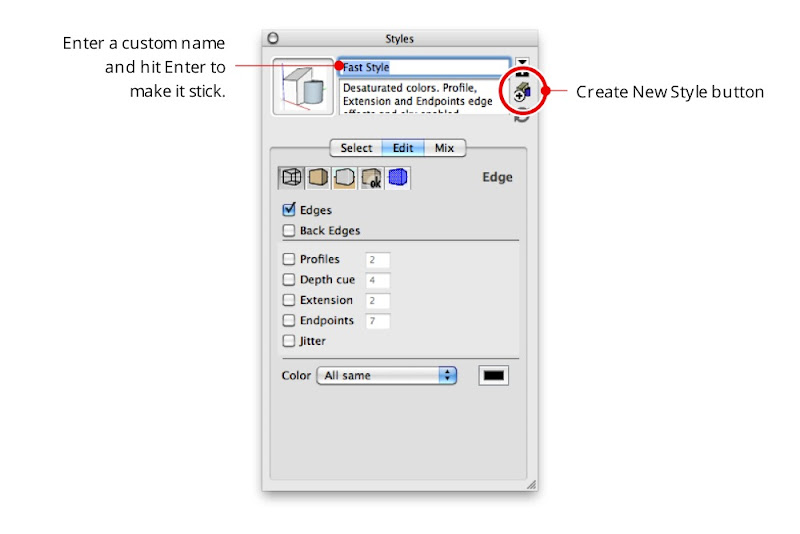
Everybody knows that faces in SketchUp can be painted with different materials. What lots of folks don’t know is that you can apply materials to groups and components, too. The following illustration shows the Entity Info dialog box, which is a great place to see which materials are applied to your geometry.

The Entity Info dialog box (Window > Entity Info) shows thumbnails for the materials assigned to selected entities. When you select a face, it shows thumbnails for the front and back sides of that face (top). Groups and components have material thumbnails, too (bottom).
When you paint a group or component red, only the faces inside it that are painted with the Default* material turn red. Faces that have already been painted with another material don’t change at all.

The above group (top) includes faces that are painted with different materials (bottom). Only the top face is assigned the Default material.

Applying a material to the entire group only changes the color of faces that are painted the Default material.
This trick also works with groups and components that are nested inside one another. When you apply a material to a top level group or component, all the Default-colored faces that are inside nested, Default-colored groups and components inherit that material automatically. The following diagram is my best attempt at a visual explanation of this phenomenon.

Applying a material to a group or component that in turn contains sub-groups and component instances can be a confusing experience. Just remember that the color you’re painting “trickles down” to Default-colored faces contained within Default-colored groups and components. It’s easier done than said : )
*SketchUp automatically applies the Default material to faces you create from scratch. You can also paint anything with the Default material at any time; just pick it in the Materials Browser (which looks completely different on PCs and Macs.)
The Windows and Mac versions of the Materials Browser. On the former, the Default material is included as a permanent thumbnail; on the latter, it’s the first material in the “Colors In Model” list.
As you can see, this technique is a godsend for building complicated objects that need to change color easily. In the case of the George Nelson Marshmallow Sofa in the images that follow, the cushions are individual component instances nested inside the main Sofa component. These are assigned the Default material.
I downloaded this George Nelson Marshmallow Sofa component from FormFonts.
The individual cushions are instances of the same component. Each instance is assigned the Default material.
All of the metal and rubber frame pieces are also groups and components, but their faces are all assigned specific materials.
When you use the Paint Bucket to paint a color—in this case orange—on the main Marshmallow Sofa component, only the cushions take on that color. Everything not assigned the Default material stays exactly the way it is.
SketchUp: The New England Aquarium
April Phelps is a LEED-accredited designer who works at the New England Aquarium creating new exhibits and enhancing existing ones. Boston’s New England Aquarium is one of the many non-profit organizations to which we’ve granted SketchUp Pro licenses as part of the SketchUp for Nonprofits program.
SketchUp Pro has been a big help to us in the New England Aquarium Design Department. The Aquarium was founded in 1969 and attracts over 1.3 million visitors a year to our waterfront location. Recently the Aquarium’s capital improvement plan called for a complete renovation of our changing exhibits space, and we decided to part with the Aquarium’s traditional design aesthetic and embark on a new path.
The newly completed exhibit we designed in SketchUp Pro is called The Trust Family Foundation Shark and Ray Touch Tank. It features sharks and rays in a mangrove-themed tank surrounded by shallow edges and viewing windows, allowing visitors to experience a close encounter with these animals.
The exhibit presents these incredible species in a way that highlights their importance in a healthy ocean ecosystem. It also emphasizes the value of conserving essential coastal habitats, such as mangroves and lagoons. During evening hours the new space is also used as an event venue for private functions.

View from the entrance of the shark and ray touch tank. On top is our design phaserendering; below is an opening day photograph.
The Aquarium provides unique challenges for designers. We have a variety of internal clients with different needs, and we need a modeling program that works quickly and accurately to convey our ideas. SketchUp’s quick modeling capabilities provided me the extra time needed to explore multiple design options on this project.
SketchUp also enabled our design team to give everyone at the Aquarium a sense of the new exhibit’s aesthetics quickly and easily. In addition to quickly creating renderings, we imported actual material samples into our models. This allowed staff and visitors to get a sense of scale and of how significant the interaction with animals would be.

View from inside the exhibit towards the Lagoon and Cassiopeia tanks. Above isour design phase rendering; below is an opening day photograph.
Our traditional design aesthetic for the Main Building is to make the visitor feel like they are submerged underwater, looking through portals to all the fish. The new exhibit needed to be airy and bright, allowing visitors to feel that they are no longer submerged but at the beach level interacting with the animals. To achieve this we revealed the once covered up skylights and installed a significant amount of energy efficient lighting. With natural and artificial lighting we simulated the feeling of wading around a beach touching sharks and rays.

View of The Trust Family Foundation Shark and Ray Touch Tank Gift Shop. The top image is our design phase rendering; below it is an opening day photograph.
This “no surprises” methodology allowed us to receive design input from different departments quickly. Given our very tight schedule and lack of resources, it proved to be most helpful. We’re excited to continue to use SketchUp Pro on future projects and renovations at the New England Aquarium.
Dynamic Animated Tile Layers in Bing Maps (AJAX v7) 3
Now that I’ve got a working animated tile class, it’s time to look and see what performance improvements I can make to it. As in my first post in this series, the frames of my animation are going to be built from weather RADAR data collected from the NOAA at regular intervals in time (every 15 minutes), over a 6 hour period. This means that, every time my animation runs through a complete cycle, I will have requested 24 times the number of tiles normally required to construct the background of the map display. The absolute key to making this solution usable was going to be in ensuring those tiles were as small filesize as possible.
Reducing the Bit Depth
My weather data was retrieved and the tile images constructed dynamically using a PHP script. Since I wanted my tiles to retain transparency (so that they could be overlaid on top of other layers), but didn’t want to use GIF format, my only choice was to opt for PNG files which can be created with the PHP imagepng function.
By default, PHP creates true colour (i.e. 32bit) PNG images. However, my NOAA radar imagery was only using a 256 colour palette so, as suggested by a commentator on one of my previous posts (thanks Chris!), I could save some space without affecting image quality by ensuring all my tile images were saved as 8bit PNG rather than 32bit PNG. To compare, here’s the RADAR image for tile quadkey 02311, recorded at 10:15am on 27th May 2011:
32Bit PNG (192kb) |
8Bit PNG (9kb) |
192kb reduced to 9kb with no change in appearance – that’s a pretty good start!
Compressing the Tiles
My next option was to compress the tiles. The PNG file format uses the Deflate compression algorithm, which has two key features: a.) It’s a lossless algorithm, so (unlike JPG) there is no reduction in image quality in a compressed image file, and b.) it has a static decompression rate. What that means is that, however much you compress a PNG file, it will not take longer to decompress. Unlike some archive formats, there is no trade-off between having a smaller compressed filesize, only for it to take longer to unpack or for it to be lower quality – with PNG, compression is always desirable. You can read a good introductory guide to PNG compression at http://optipng.sourceforge.net/pngtech/optipng.html
There are a number of different PNG compression tools out there. For comparison, I tried both an online service (PunyPNG), and a small downloadable Windows application that provides a front-end for a series of command-line PNG utilities (PNG Monster). Both are free to use, and don’t add any watermarks to your images.
PunyPNG compressed my 8bit PNG, original size 9,212 bytes, down to 7,270 bytes (a 22% reduction). PNG Monster did even better, reducing it to just 5,793 bytes (a 37% reduction).
PunyPNG compressed 8Bit PNG image (8 bytes) |
PNG Monster compressed 8Bit PNG image (6 bytes) |
What makes PNG Monster even more useful is that you can set it to batch process and compress all the PNG files in a directory, rather than having to upload them one by one to an online webservice. The interface isn’t much to look at (except for the nice icon of the Cookie Monster), but if it gets the job done, who cares?!
I set it to work in a directory that contained 256 tiles representing the tiles for one frame of animation, at zoom levels 5, 6, and 7. This reduced the total size from 1.2Mb down to 566Kb – less than half the original size:
The Only Way is… PNG?
(If you’re not au fait with pop singles from the late 1980s, that title was meant to be an homage to Yazz. Oh, never mind…).
I was pretty pleased with the results from PNG monster, but there was just one more option I wanted to explore. My reason for choosing PNG was because it supported transparency, and could therefore be added as a separate tilelayer overlaid on top of other background layers within the AJAX control. For example, you could place the animated weather tilelayers on top of the base aerial imagery tiles, or the road map tiles:
| Base map style | Transparent PNG | Result | ||
![]() |
+ | ![]() |
= | ![]() |
![]() |
+ | ![]() |
= | ![]() |
But what about, rather than creating the RADAR image as a transparent layer, I created an opaque tile that showed the data ready overlaid onto a Bing Maps imagery tile? That way, I could save the tile as a JPG file instead and take advantage of its (potentially) greater compression ratio.
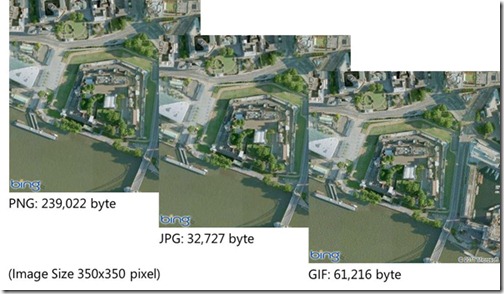
The aerial image tile shown above, http://ecn.t1.tiles.virtualearth.net/tiles/h02311.jpeg?g=685&mkt=en-gb&n=z, is 24,128 bytes. Setting a compression ratio of 65%, I could create a JPG tile of almost exactly the same filesize as the original Bing Maps tile, but incorporated the radar image as well:
While, at first, I thought that embedding the RADAR imagery onto the background tile image might have been a good idea, (and, it would be, if I was only trying to display a single static tile combining weather data and imagery), the end JPG tile ended up being much greater size than my compressed PNG image tiles. In every frame of the animation, I’d be downloading the entire background map image for that tile again, and I’d also lose the flexibility of being to overlay a transparent layer on top of any other layer. Idea aborted – back to PNGs!
Two new store locator templates
As Multimap and MapPoint Web Service customers know, Microsoft will consolidate services to the Bing Maps platform effective November 18, 2011. While there is a substantial amount of helpful information available at our migration portal, including a devoted page to our migration partners, we wanted to highlight two store locator templates that have proven helpful to customers.
InKnowledge’s Bing Maps Locator Wizard was built around multiple Microsoft technologies, including Bing Maps AJAX Control 7.0, Bing Maps REST services, Bing Spatial Data Services, Windows Azure, SQL Azure and MVC3. Customers can use the basic locator to customize their site within minutes, and have the option to download or host in Windows Azure through InKnowledge’s portal (the service is free.) For more information, check out a preview video, or a more expansive overview video. If you’d rather read about the template, check out this blog entry from InKnowledge’s Ricky Brundritt.
Shoothill’s My Store Locator template will be launched on Wed, May 18 during a Bing Maps webcast. The template was built using Bing Maps, Visual Studio 2010, Expressions Web 4, Hyper-V virtualisation technologies, Windows Azure and SQL Azure. As well as targeting former Multimap customers to enable them to make a seamless transition to the Bing Maps platform, the My Store Locator can assist any business seeking to migrate to Bing Maps from any mapping platform. Find out more and register for the webcast here.