Microsoft Bing Maps Takes the Fast Route to Efficiency

Microsoft Bing Maps team members Tom Barclay, Brad Clark and Ryan Tracy talk about how their work with Dell Data Center Solutions on their new microsite in Longmont, Colorado, enables them to deliver the world to the world — for less.

http://www.youtube.com/v/SDLc1di2tUQ?version=3&f=videos&app=youtube_gdata

Bing Maps: A New Look for Pushpins, Popups, and Transit

Bing Maps  just rolled out some exciting new updates to www.bing.com/maps that make it easier for you to find information on the map, explore the layouts of over 850 venues, as well as get to where you’re going with public transit (or transport). Read on to learn more!

Pushpin and Popup refresh

The pushpin. It’s the most common element overlaid on a map. And today, it’s getting an update. In making these changes, to both the pushpin and corresponding popup, our goals were simple: enable you to find the information you want, more quickly and efficiently, while at the same time minimizing obstruction of the map. Let’s take a deeper look at some before and after examples.
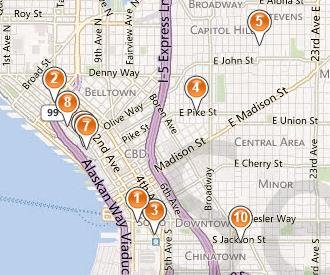
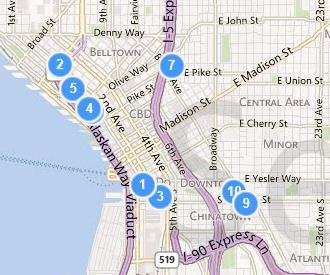
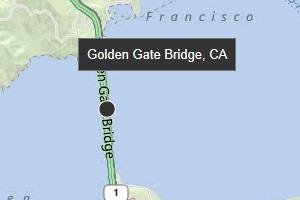
The updated pushpins are designed to better overlay on top of our base map color scheme and make it easier to find results when you perform a search. Search related content appears in blue, while user-generated and saved content (such as “My places”) use an orange colored pin. The contrast changes are more pronounced on hover (and for business searches, the corresponding item in the left-hand panel is adjusted as well), and we’ve also added a new small popup to tell you the name or location or the pin you’re hovering over. Now it’s much easier to quickly scan a bunch of pins to see what they are.
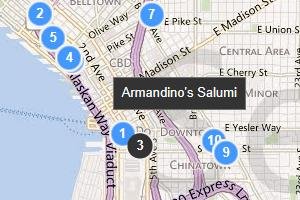


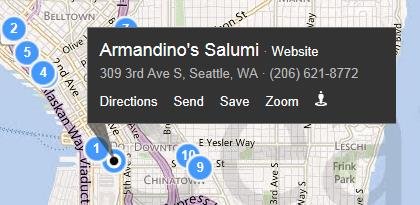
When you click to select a pin, it actually shrinks so as to expose more of the map underneath, and unveil our streamlined popup. Here, we’ve made a number of changes to more compactly display the relevant business or location information and stand out against the backdrop. The most popular actions available for each item have been simplified and consistently placed at the bottom. For most users (except those in the UK), the interaction has changed from a hover-only model to a click-based model for showing the full popup contents. (For users in the UK, where you already had to click to see the popup, we’ve simply added the new smaller hover popup in addition to the layout and style changes.) Overall, these improvements allow you to keep a popup visible while panning/adjusting the map, and even hover over other pins to see what they correspond to, ultimately making it easier for you to find the place you want more efficiently.
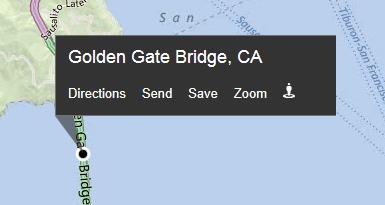
 

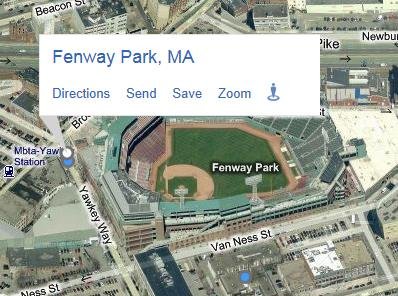
One final change you may have noticed is that the pushpins and popups dynamically adjust based on the current map style in order to ensure the information does not get lost on the map.
 

Enhanced Transit Experience

Public transit (and UK transport) users will find a handful of subtle improvements to our directions experience that make it easier to get where you’re going, and make sure you’re on the right line to get there. We’ve changed the way we represent each transit line to better reflect the actual colors and signage used by the line, both for our US and UK markets. You’ll see this reflected both in the on-map waypoints as well as our enhanced directions list.
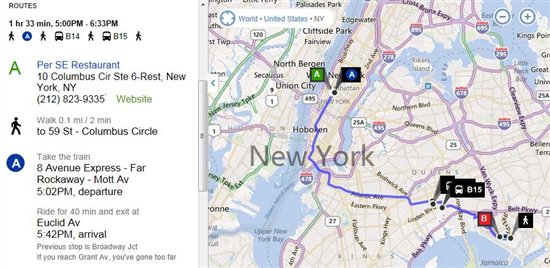
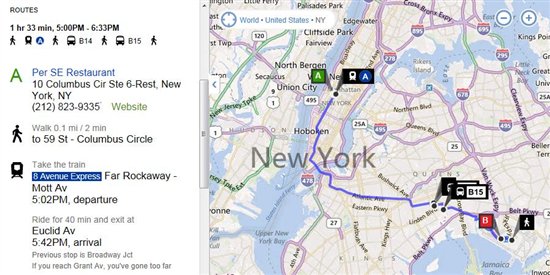


More sharing options

We’ve also extended our ability to send directions to your mobile phone (via SMS) to support transit directions. This functionality is accessible via the “Send: Mobile” link at the bottom of the directions panel. You’ll receive a link on your mobile phone which loads the directions on m.bing.com, and works for all devices which can access m.bing.com (unfortunately, Windows Phone does not currently support transit).
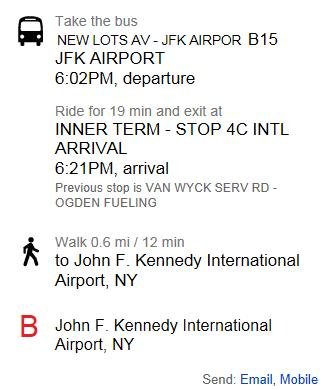
 

Drag to modify your route

Users can now easily modify their directions routes by clicking and dragging on start, end, or waypoints. You’ll see a helpful tooltip appear when you hover over an element that can be adjusted simply by dragging and dropping—and the route will be recalculated automatically!

Explore venues

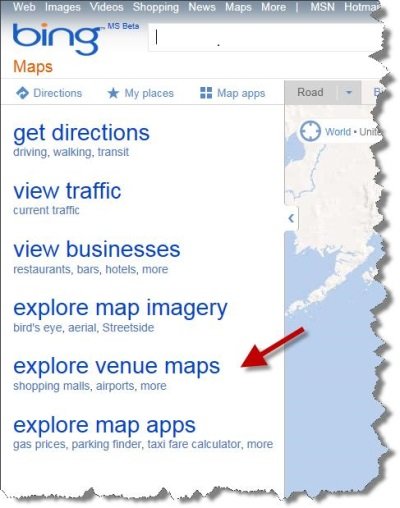
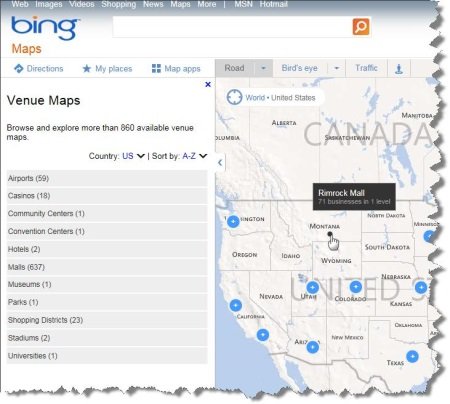
Did you know Bing Maps now has over 850 venue maps of airports, malls, shopping districts, and more? Browsing through them is now easier than ever! Just click on the “explore venue maps” link on Bing Maps, or visitwww.bing.com/maps/venues to get there directly, to browse a categorized listing of available venue maps. You can filter them by country, sort them by location (or alphabetically), and browse through them spatially on the map. If you want to have your venue be part of Bing Venue maps, please contact us for details.
 

We’re excited about this next step in the evolution of our visual design and believe it is a big step forward for simplifying user interaction with the map, and helping users find the information they want quickly and efficiently. We’ll be rolling out these changes to bring consistency across the broader Bing network over the next few weeks.

Four New Bing Maps V7 Modules

In September of 2011 Bing started the Bing Maps v7 Module CodePlex Project. The purpose of this project is to create a single place where developers can find and share useful modules that expand the functionality of the Bing Maps V7 API. Currently, there have been 10 modules submitted to the project. With a number of new modules in development, it’s safe to say that this project is definitely worth looking into. Today I would like to highlight the four newest modules added to this project.

Point Based Clustering Module

Download here

Bing created this module based on feedback received around the Client Side Clustering Module that  created some time ago. The older client side clustering module uses a grid based algorithm which is fast, but requires re-clustering the data every time the map moved. This allows for 5000+ pushpins to be clustered in a fraction of a second but often results in pushpins jumping around the map as you pan. The point based algorithm prevents pushpins from overlapping and jumping around by only clustering the data when the zoom level changes. Additionally this module keeps track of clustered information for each zoom level, making the algorithm faster the more you use it. This improved UI experience does affect performance and as such this algorithm is recommended for 2000 or less pushpins. Interested in reading more about how this algorithm was created? Check out this blog post.

GPX Parser

Download here

Bing created this module due to a number of requests that had received for such a module. This module allows you to easily pass in a URL to a GPX file and have it parsed into an EntityCollection which you can then render on Bing Maps. GPX is a type of XML file that is commonly used by GPS devices. It can be used to describe waypoints, tracks, and routes. Majority of the XML tags for V1 and V1.1 of the GPX schema are supported and all data is stored in a Metadata property, which is added to each entity.

Route Optimization – RouteSavvy Module

Download here

This module was created by OnTerra Systems, a Bing Maps Partner.

In today’s economy, it is more important than ever that companies optimize and manage their supply chains more efficiently. Given today’s fuel costs, product delivery with high quality of service and short delay times is paramount. Distribution accounts for a large proportion of the overall operational costs of a producer. Hence, effective and efficient management of transportation and distribution of goods are becoming increasingly important.

One of the key problems in this process is the optimization of delivery routes to customers. This problem is known as the “Travelling Salesman Problem” (TSP). RouteSavvy is a web service that helps solve this problem.

RouteSavvy is a simple but powerful tool that can take anywhere from 3 or 4 locations to hundreds of locations. It reorders them based on whether you’d like to visit them in a “round-trip” OR as a one-way trip, with the last stop chosen either by you or by the software (whichever is preferred).

Web developers can now easily integrate the RouteSavvy API into their web application by adding the RouteSavvy Map Module. The map module uses Ajax to call the RouteSavvy web service to optimize a given set of locations.

Here is a screen shot of a set random location optimized for a round trip:

Mini-Map Module

Download here

This module was created by OnTerra Systems, a Bing Maps Partner.

The Bing Maps Ajax v7 control doesn’t include support for adding a Mini-Map. The Mini-Map module adds a small map at the right corner of the parent map that’s collapsible and shows the extents covered by the current map. This module adds a mini map at the top right corner of the screen. Mini-map view helps to give a zoomed out overview of your location. Here is a screen shot of the implemented Mini-Map module:

I hope you find these new modules useful!

Bing Maps Token Service – Upgrade to Keys Today!

For our current Bing Maps Platform customers using the Bing Maps Token Service, we want to remind you that this service will be retired on March 30, 2012. Please be sure to upgrade any of your applications that are using the Bing Maps Token Service to Bing Maps Keys before this date to ensure that your access to the Bing Maps Platform is not interrupted.

What Bing Maps Platform API’s does this upgrade apply to?

This upgrade only applies to the following Bing Maps Platform API’s:

What are the benefits of using Bing Maps Keys instead of the Bing Maps Token Service?

  • Improved performance in accessing the Bing Maps Platform (i.e. the elimination of the requirement to call the Token Service prior to calling the Bing Maps API’s).
  • Unlike Bing Maps Tokens, Bing Maps Keys do not expire.
  • Enhanced management and reporting of your Bing Maps Platform usage (i.e. you can assign a unique Bing Maps Key to each of your applications to separately track the Bing Maps usage for each of your applications).

How can you tell if you are currently using the Bing Maps Token Service?

How do you get started with upgrading from the Bing Maps Token Service to Bing Maps Keys?

To get started, please follow the MSDN article, Migrating from Tokens to Keys, which explains how to obtain a Bing Maps Key, and provides guidance on upgrading your applications to Bing Maps Keys for applications using the Bing Maps AJAX Control, the Bing Maps Silverlight Control, or Bing Maps SOAP services.