The doors are represented differently in plan, elevation and sectional orthographic views of a building. By which I mean:
- In plan, doors are generally shown in the open position.
- In elevation, doors appear closed.
- When cut through in section, doors disappear altogether.
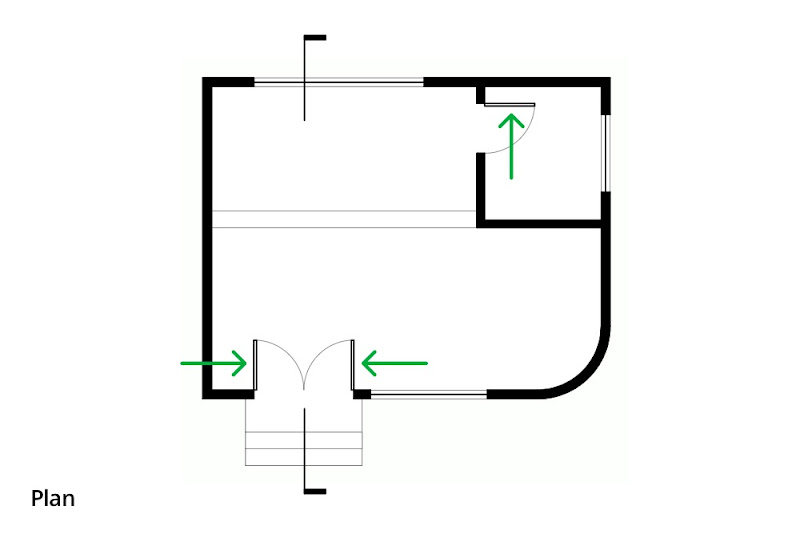 In plan, doors appear open to show their swing. In the above image, the swing arcs, section cut graphics and arrows were added in LayOut.
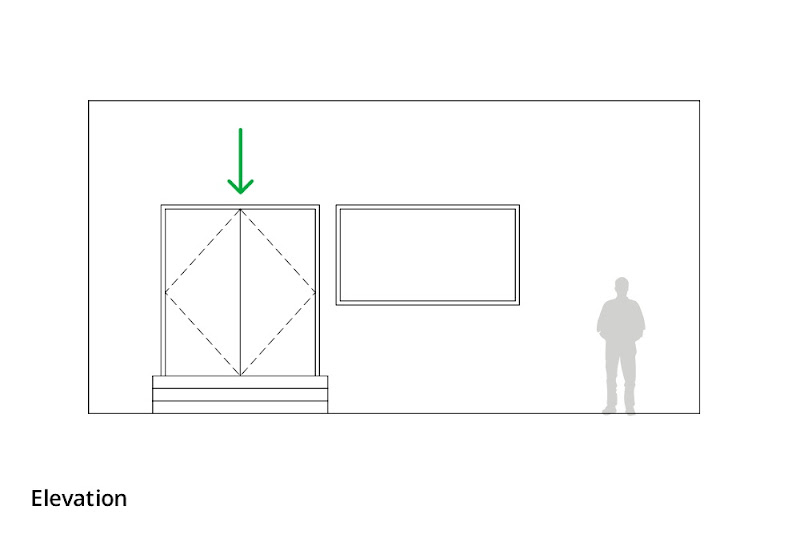 In elevation, doors appear closed. Otherwise, you’d be able to see through them, which would be visually confusing. The scale figure and the dashed lines to indicate the hinge position were added in LayOut.
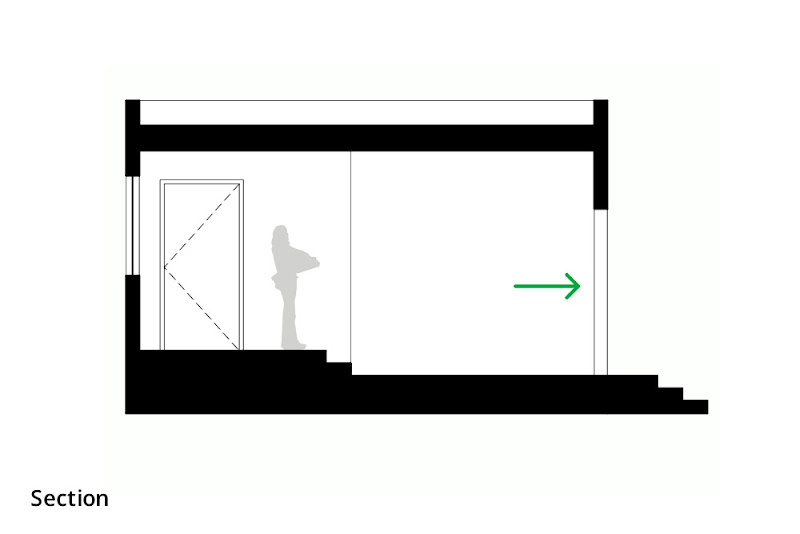 In sectional views, doors which are cut through don’t appear at all. All that is visible of the doorway in the above section is the edges of the wall beyond the cut. Doors which appear in elevation (like the one on the left) are shown closed.
If I’m modeling a building and I leave the doors open, they’ll look correct in plan but not in other views. If I close them, the plans will look wrong. Clearly, I need two sets of doors—one open, one closed—and I need to manage which set is visible in each view. Layers, Scenes and nested components to the rescue!
The idea here is to create a door component that includes two sub-components: one that’s an open door, and one that’s a closed door. Mine looks something like this:
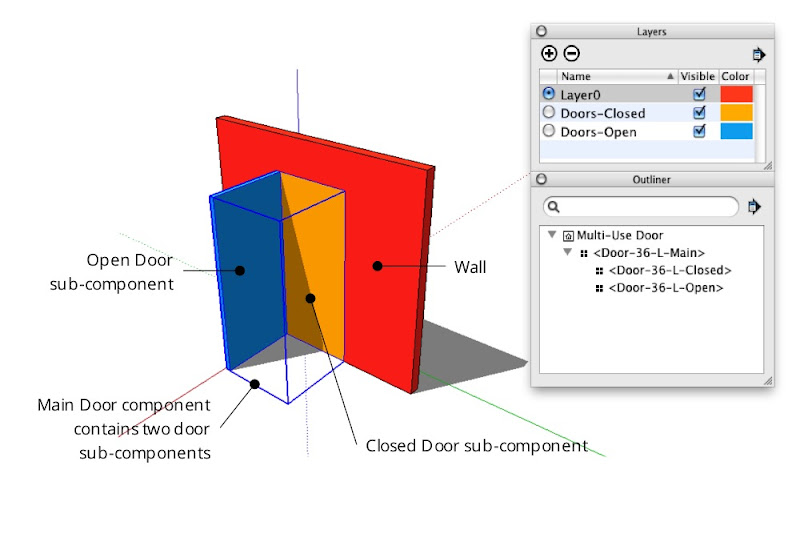 A door component which includes both open and closed door sub-components, each on its own layer. In the image above, “Color By Layer” is turned on to better illustrate the setup. The Outliner dialog box shows the nesting relationship of the three door components.
Creating a combination door component
Start by modeling both doors and turning them into a set of nested components:
Step 1
Create the hole into which you want to insert a door.
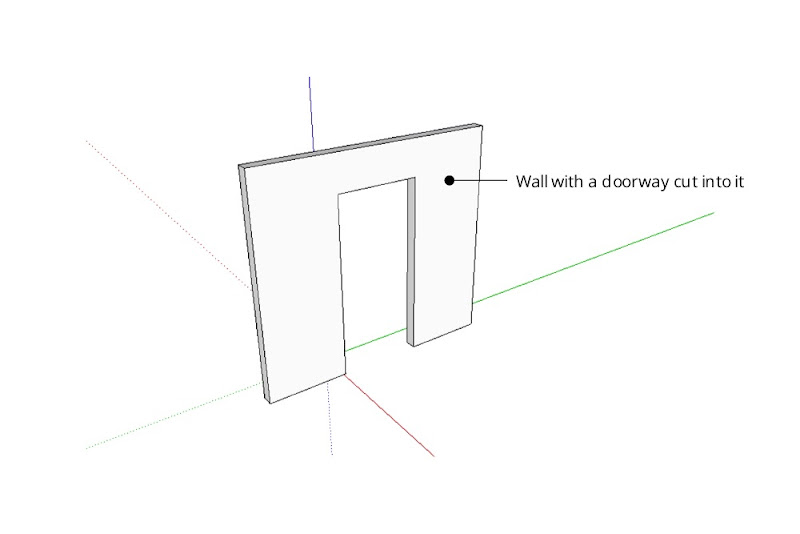 Make the hole exactly the same size as the door you’re planning to model.
Step 2
Model a door in the closed position. Keep it simple; a rectangle is fine for now.
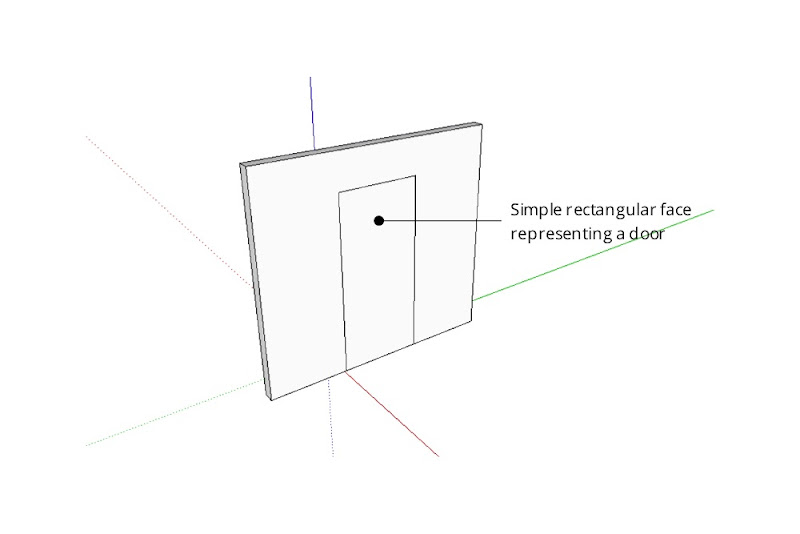 Fill the doorway opening with a simple face. Make it flush with the side of the wall into which the door will open.
Step 3
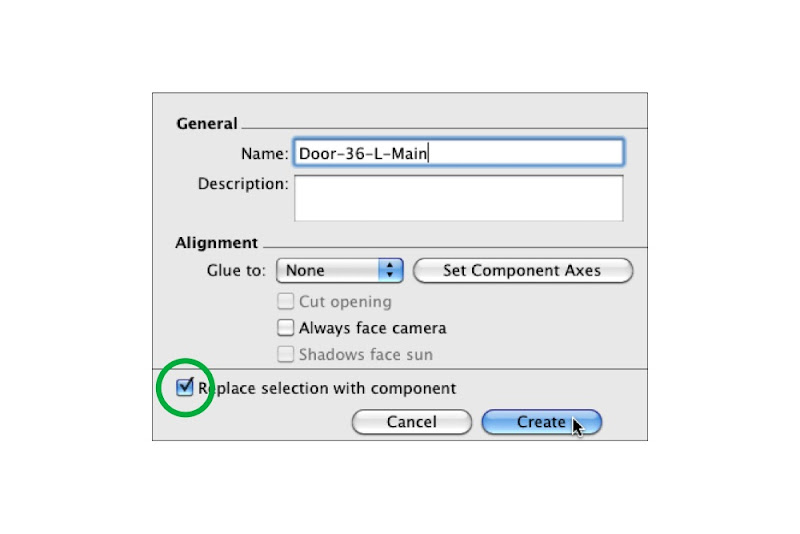
Select only the door geometry and turn it into a component. Give it a meaningful name that describes its size, orientation and position like “Door-36-L-Closed”.
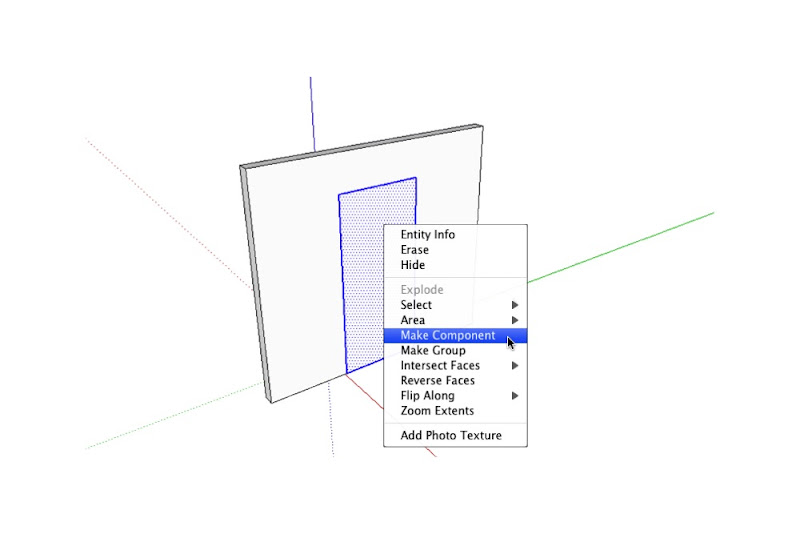 Turn your simple door into a component by selecting its geometry and right-clicking to open a context menu.
 Give your door component a meaningful name; “36” indicates the width and “L” indicates the left-hand hinge position. Make sure the “Replace selection with component” checkbox is selected before you click Create.
Step 4
If you like, add detail (like a thickness) to the door you just modeled.
 Extruding the single face into a 3D object will make it read better in plan. Resist the temptation to add doorknobs, detailed woodwork or anything else that isn’t in keeping with your model’s current level of detail.
Step 5
Model the same door in the open position. Be sure not to duplicate the component instance you made in the previous step — the whole point of this exercise is to have two, separate components.
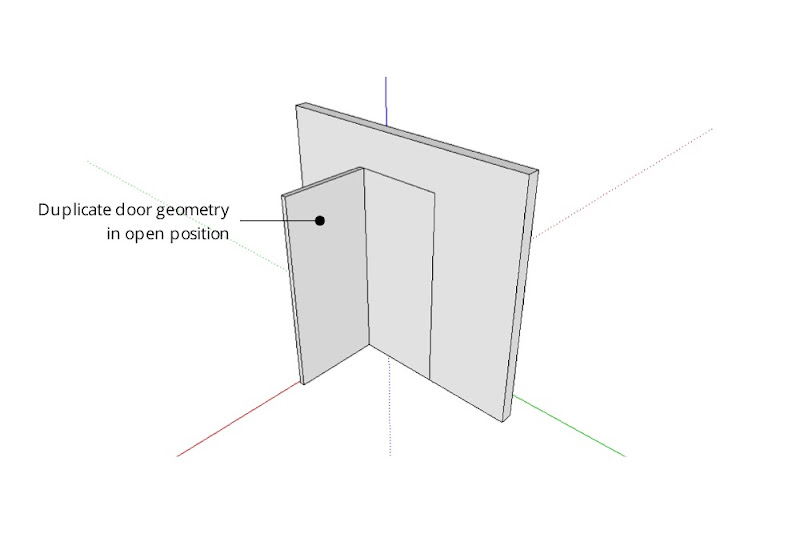 Model the same door again, this time in the open position. For accuracy, line up the edges where the hinges would be on a real door.
Step 6
Turn the open door into a new component. Call it something like “Door-36-L-Open”.
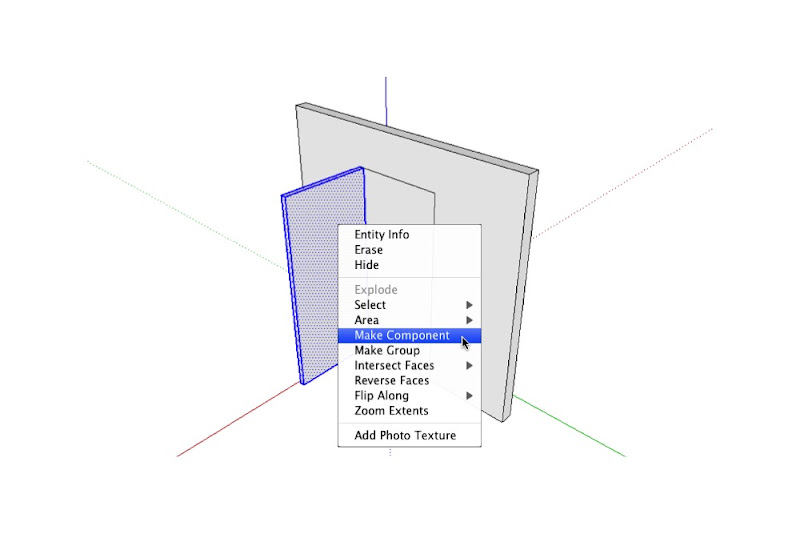
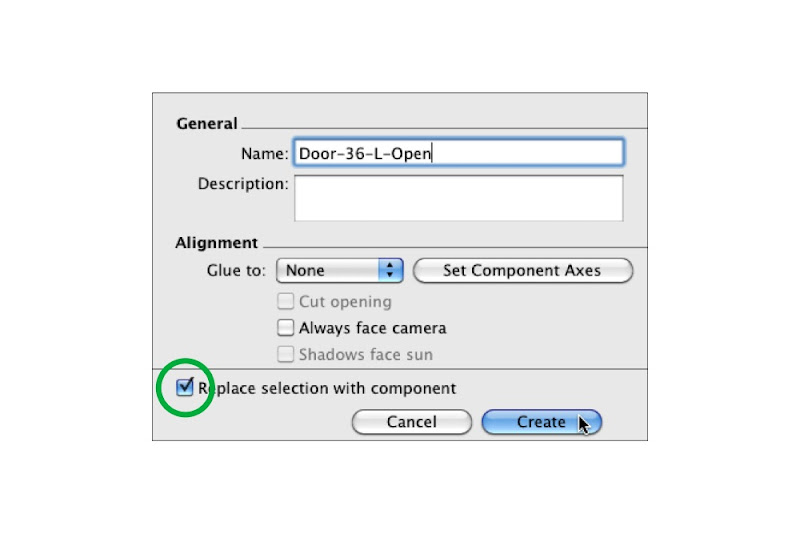 Make the open door into another component and name it accordingly.
Step 7
Select the open and closed door components and make a new component that includes both. A good name for this component might be “Door-36-L-Main”.
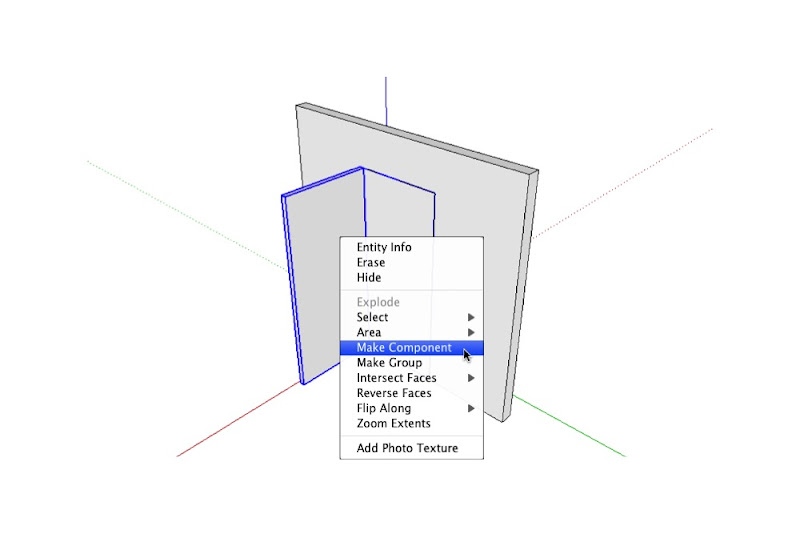
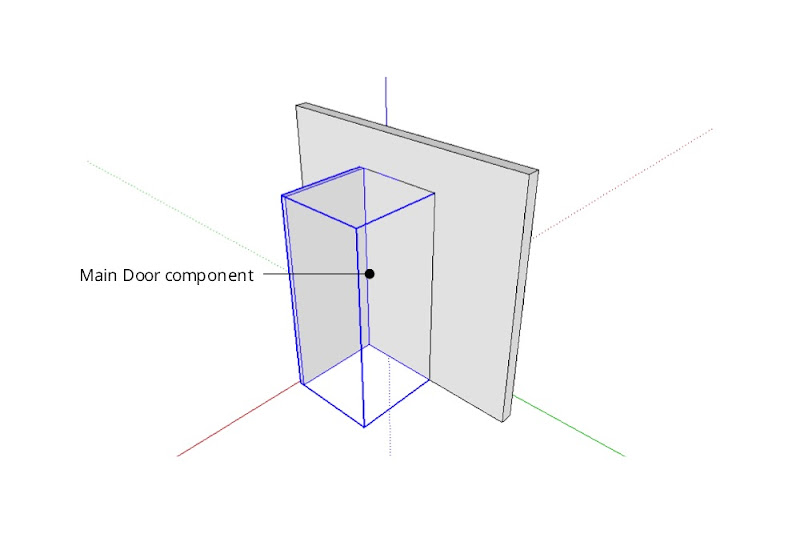 Select both door components (open and closed) and make them into a new component.
Using Layers to control component visibility
The next step is to put each sub-component on a separate layer:
Step 1
Choose Window>Layers to open the Layers Manager.
Step 2
Create a new layer called “Doors-Open”.
Step 3
Create another layer called “Doors-Closed”.
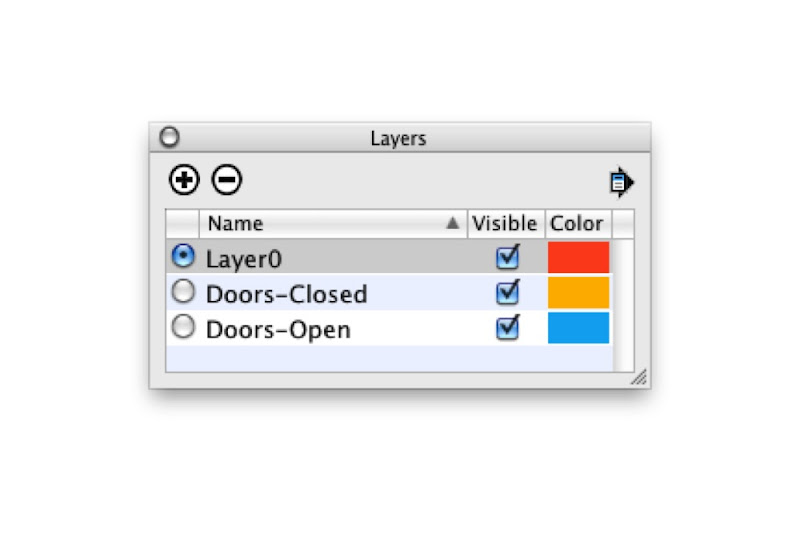 Use the Layers Manager to create two new layers.
Step 4
Choose Window>Entity Info to open the Entity Info dialog box.
Step 5
Start editing your Main door component (the one that includes both sub-components) by double-clicking it with the Select tool.
Step 6
Select the closed door sub-component and move it to the “Doors-Closed” layer using the Layer drop-down menu in the Entity Info dialog box.
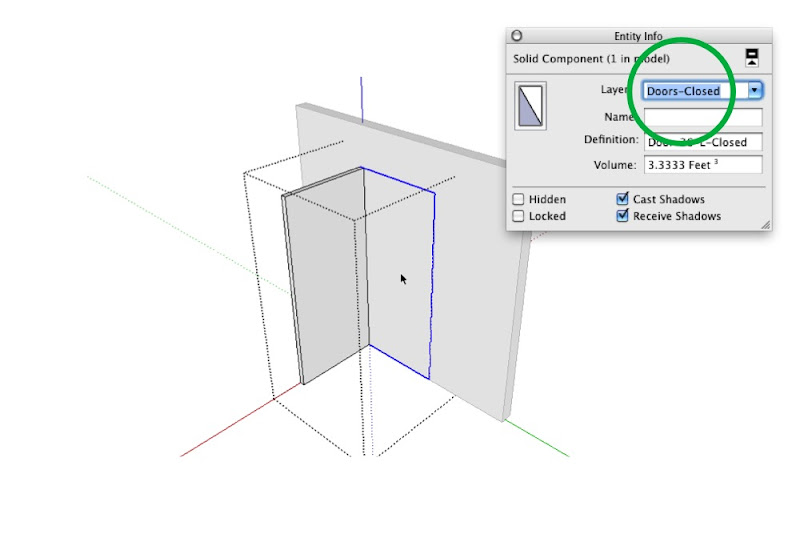 Move the Closed Door sub-component to the “Doors-Closed” layer using the Entity Info dialog box.
Step 7
Select the open door component and move it to the “Doors-Open” layer.
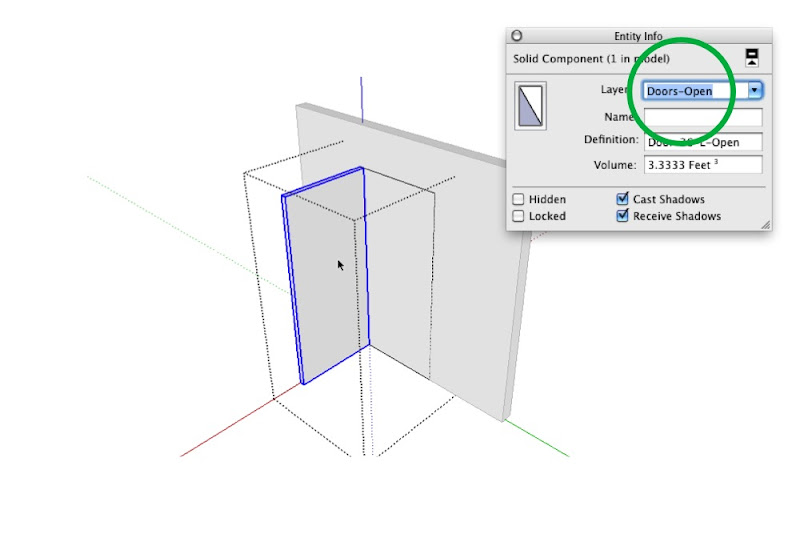 Put the Open Door sub-component on its own layer, too.
Step 8
Click elsewhere on your screen to stop editing the Main door component.
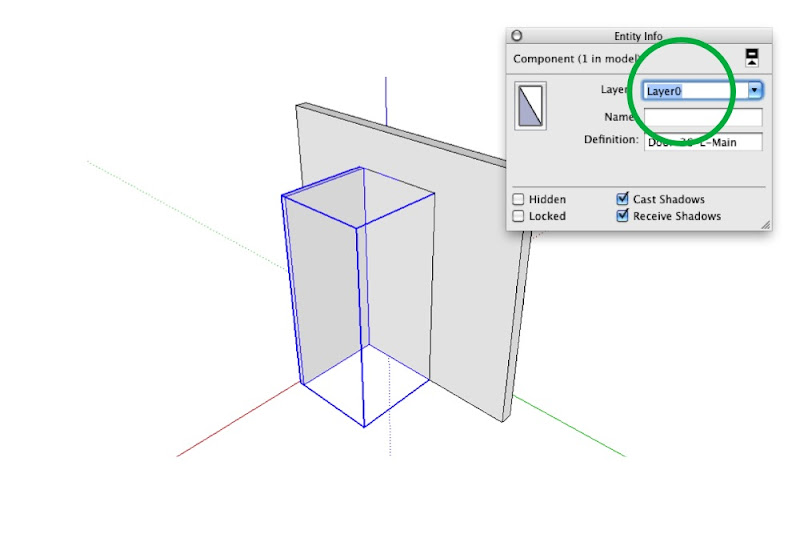 Make sure the Main Door component (which includes both sub-components) is on LayerO. If you’re really advanced, I suppose you could even have a layer dedicated to these “combo” door components. Tread lightly, though—layers can be tricky to work with.
Setting up Scenes to control layer visibility
After you’ve placed doors wherever you need them in your model, you can control which set is visible by creating (or updating) scenes that show only one “Doors” layer at a time. It’s pretty straightforward, really:
Step 1
Activate the scene that corresponds to a plan view of your model. If you don’t have one yet, just create a new scene called “Plan” and worry about getting the camera position in order later.
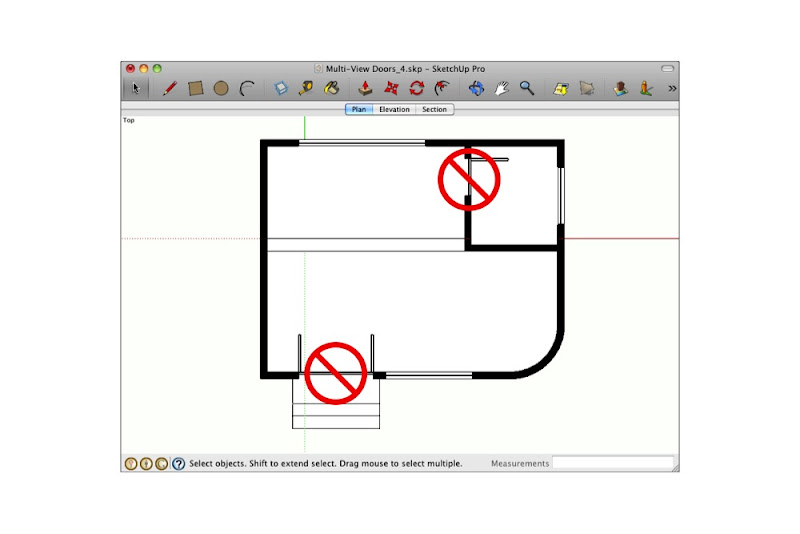 Right now, both the Doors Closed and Doors Open layers are visible. We only want the open doors to appear in the above plan.
Step 2
In the Layers Manager, hide the “Doors Closed” layer.
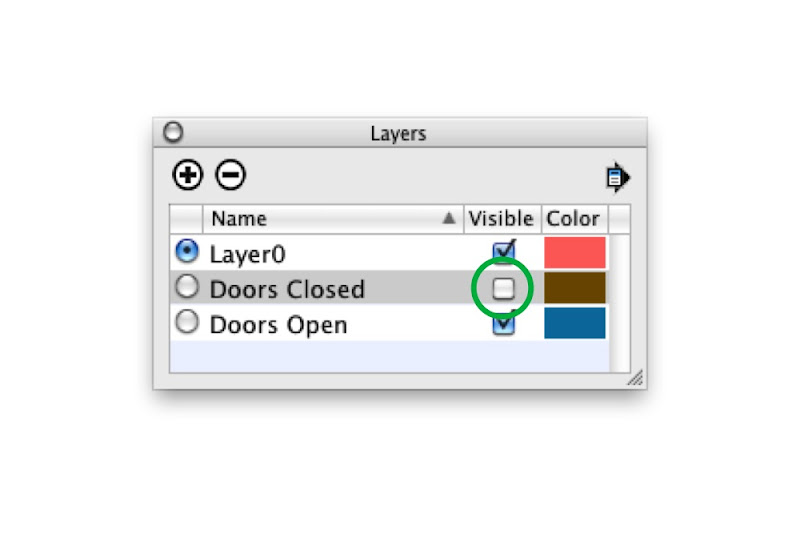 Uncheck the Doors Closed layer to make its contents invisible.
Step 3
Right-click the “Plan” scene tab and choose Update.
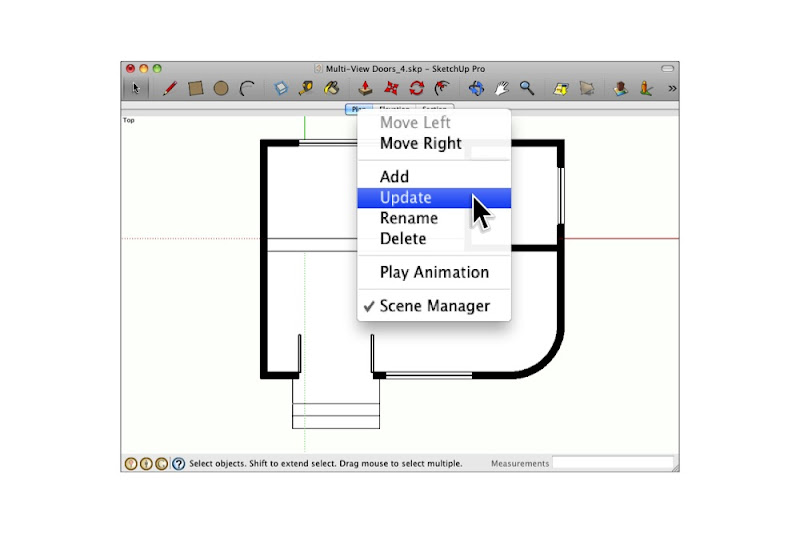 When the doors look the way you want them to, right-click the relevant scene tab and choose Update.
Step 4
Repeat the above three steps for any other planimetric scenes in your model.
Step 5
Go through the above process again for any scenes where doors should appear closed.
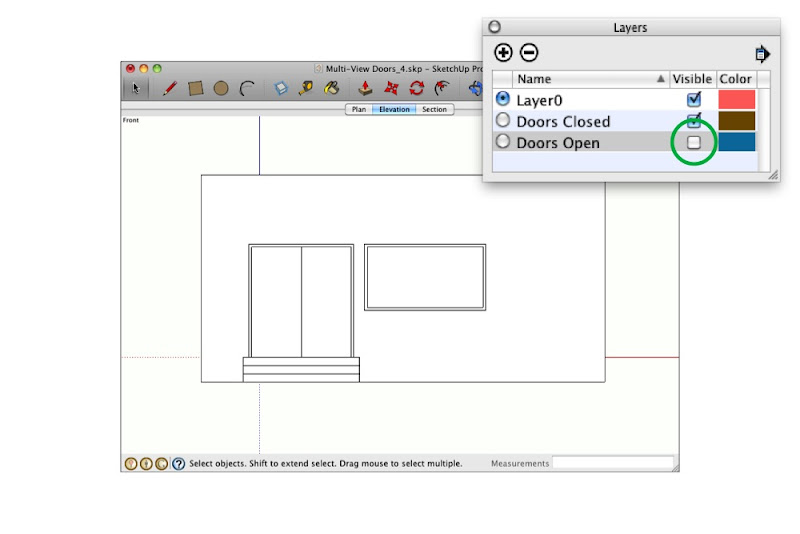 In the above elevation view, I want only the Doors Closed layer to be visible.
Dealing with doorways in section
What about doors that are cut through by section cuts? They shouldn’t appear at all. The solution here is simple: Just hide the offending door components and update your scene.
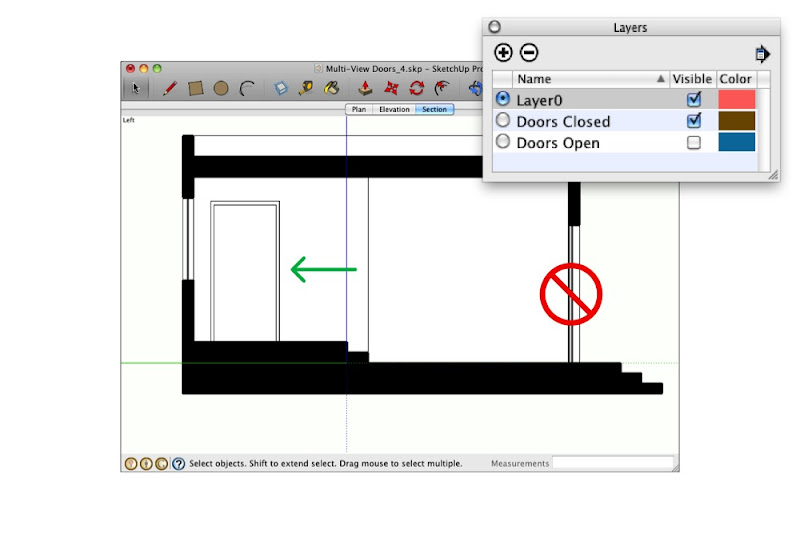 Doors which are cut through in sectional views shouldn’t appear at all. Those which appear in elevation (like the one on the left) should appear closed.

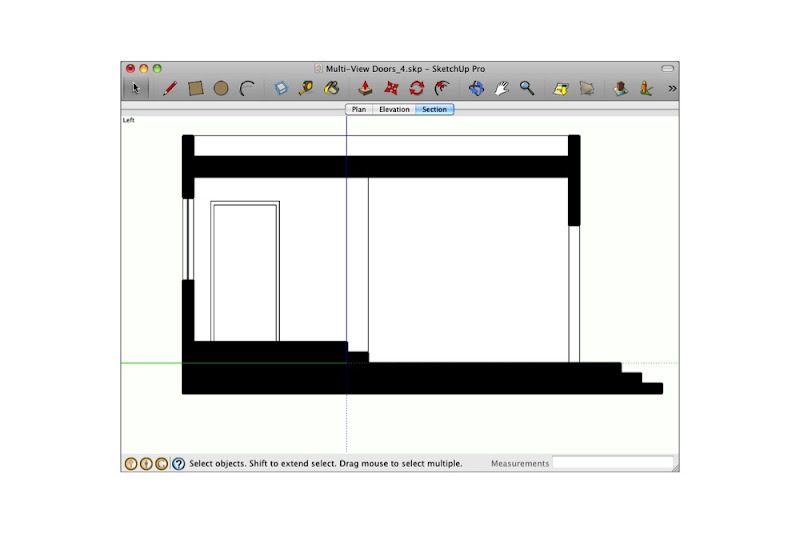 Simply hiding door components you don’t want to see (then updating the corresponding scene) is the easiest way to deal with this conundrum.
One more thing: I’ve added the above example model to the 3D Warehouse so you can download it and do some of your own experimenting.
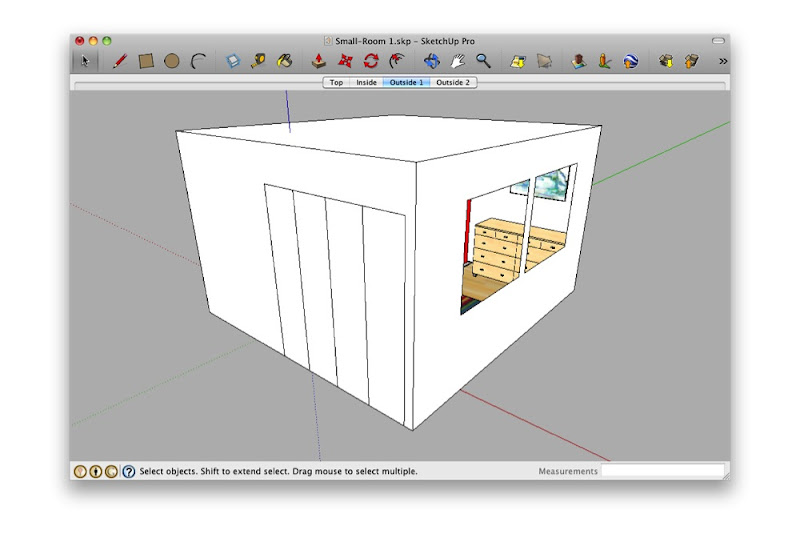 Looking at a small interior space from the outside isn’t very rewarding.
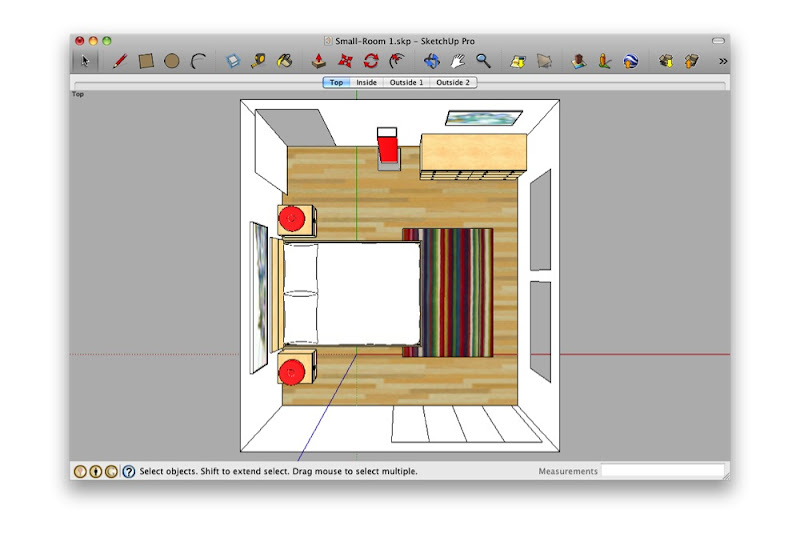 Deleting the ceiling and switching to a top view is useful, but fiddly.
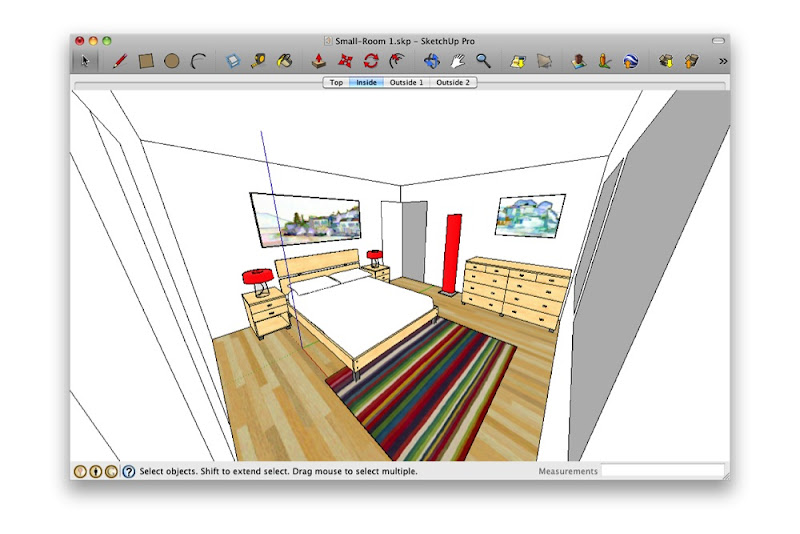 Standing in the corner and making your Field of View really wide is just weird. What are you—a housefly?
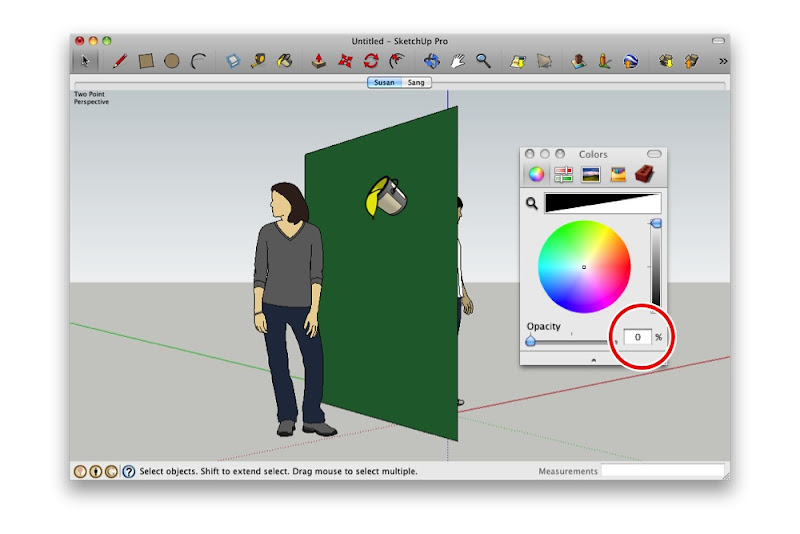
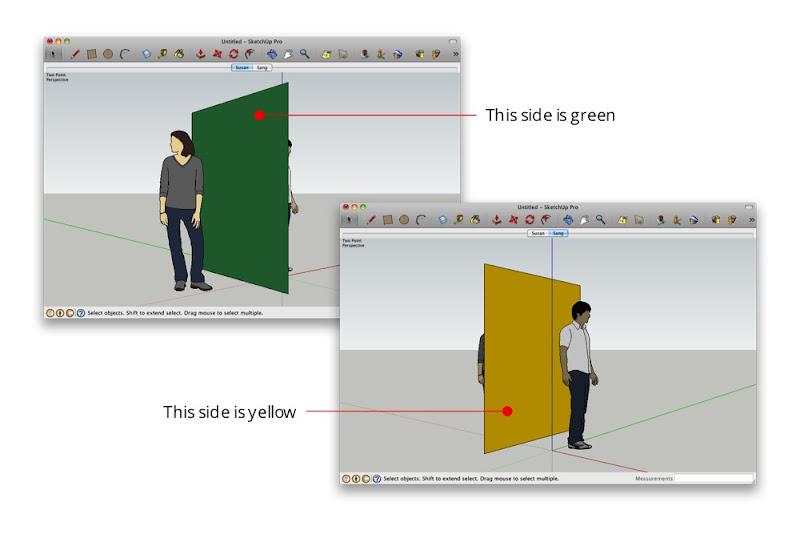 The face separating Susan and Sang is yellow on one side and green on the other.
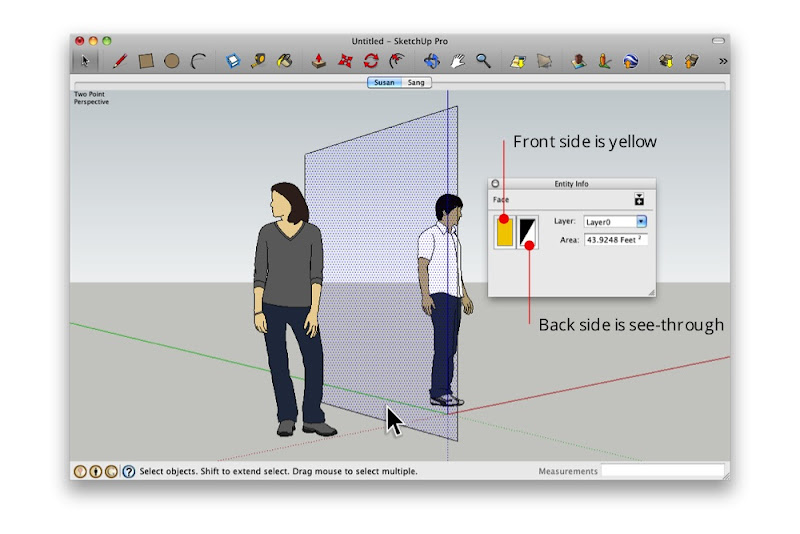 The Entity Info dialog box shows that the selected face is yellow on the front and see-through on the back.
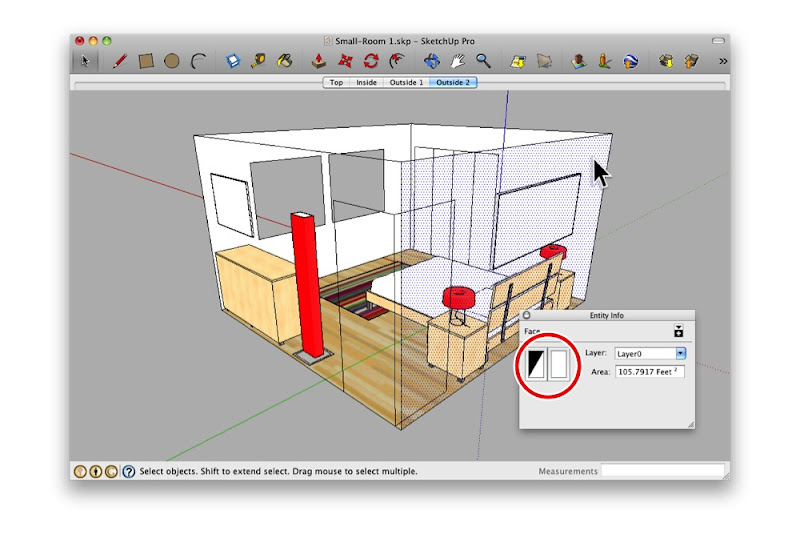 Here, I painted all of the outward-facing surfaces with a transparent material. Notice that the interior surfaces still look opaque?
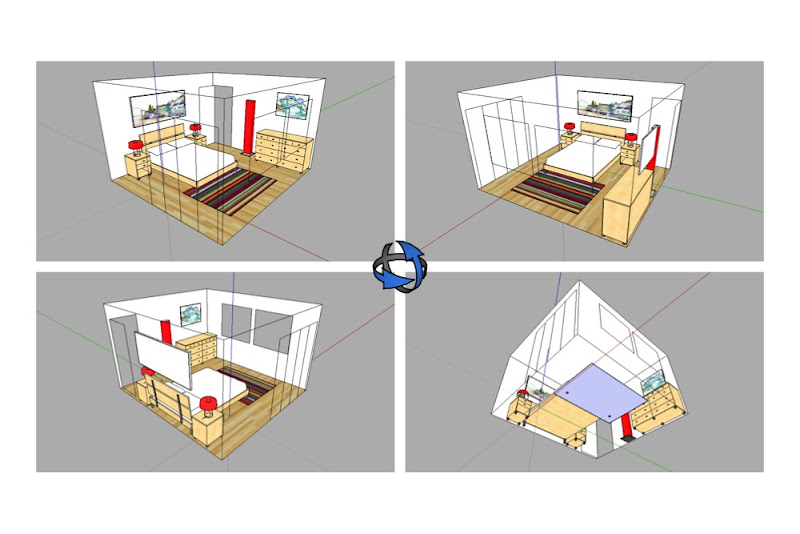 Orbiting around my model, I can see through all of the walls. I can even see through the floor.